Your Back Office, Step by Step
Step 6 of 6

Enroll a new partner

When someone wants to join, you start the enrolment and they finish it with their own details.

  • Your new partner, on the call
  • Their IC or passport number
Watch out
Click the circle, not the words. Clicking the Register now label can close the drawer, and you start again.
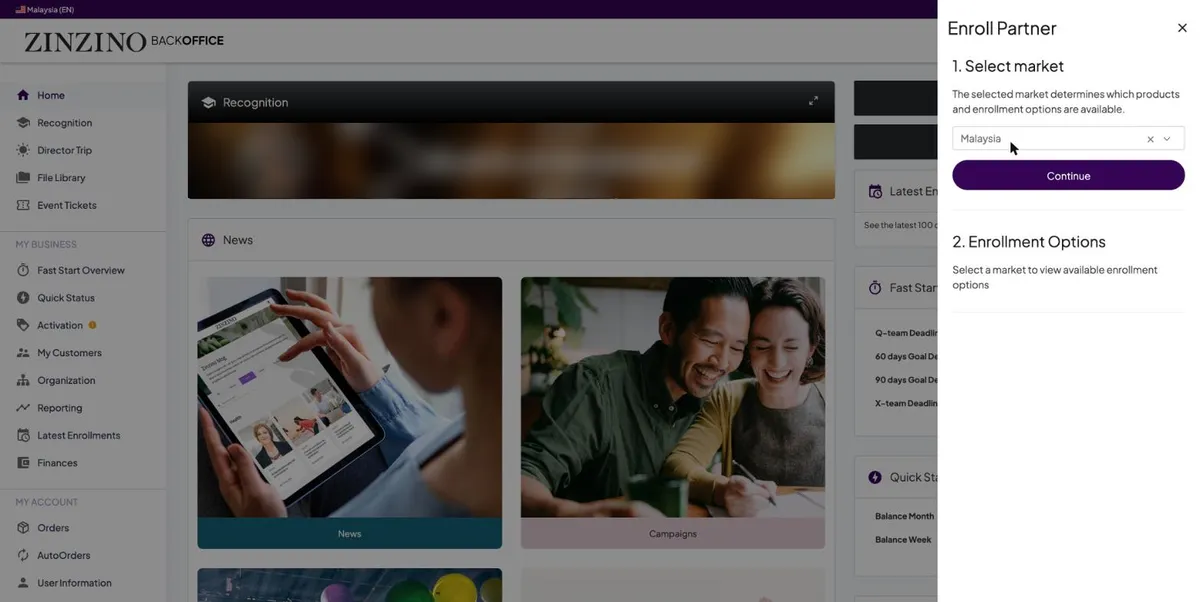
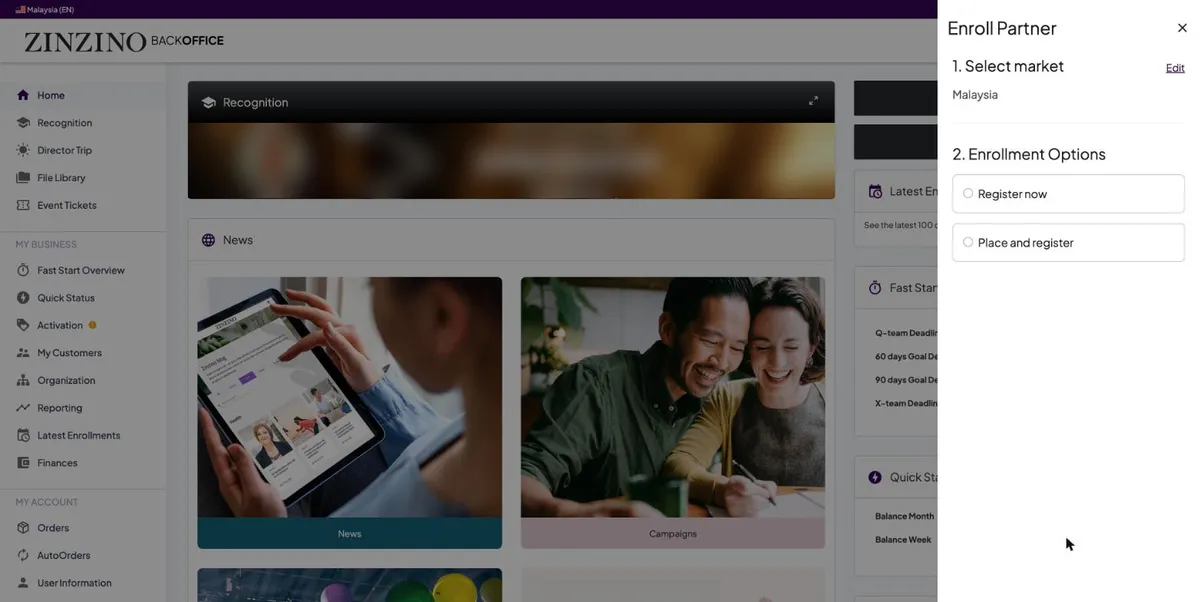
Enroll Partner drawer, market chosen
Home, Enroll New Partner. Malaysia is already chosen. Press Continue.
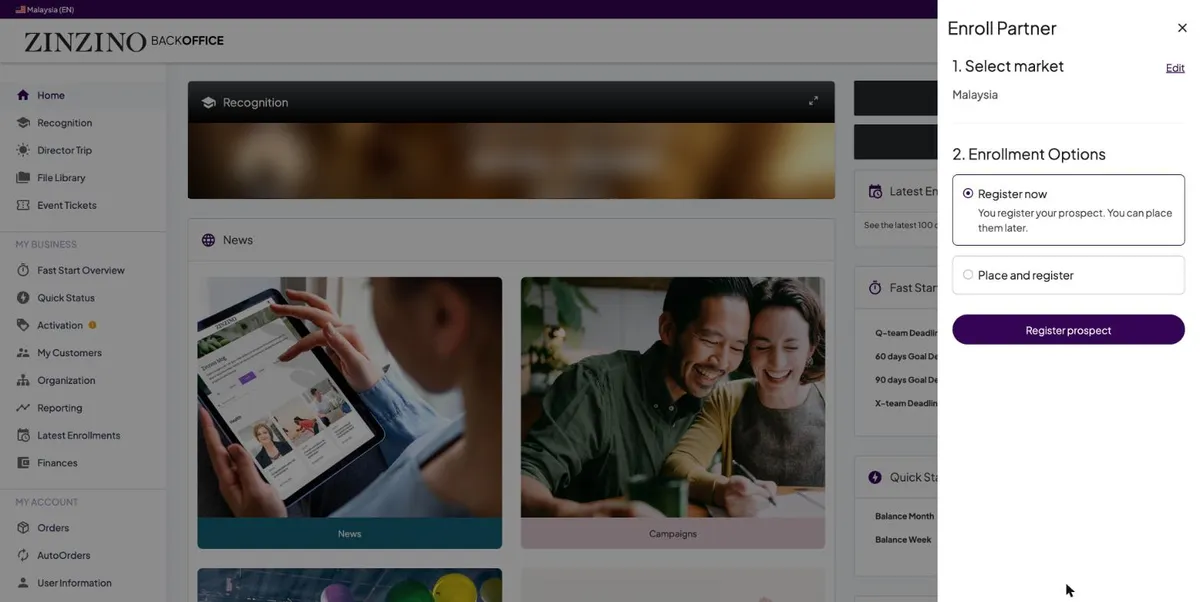
The two enrollment options
Two options. For a normal enrolment, click the small circle beside Register now.
Register now selected
Register now: you register your prospect and can place them later. Press Register prospect.
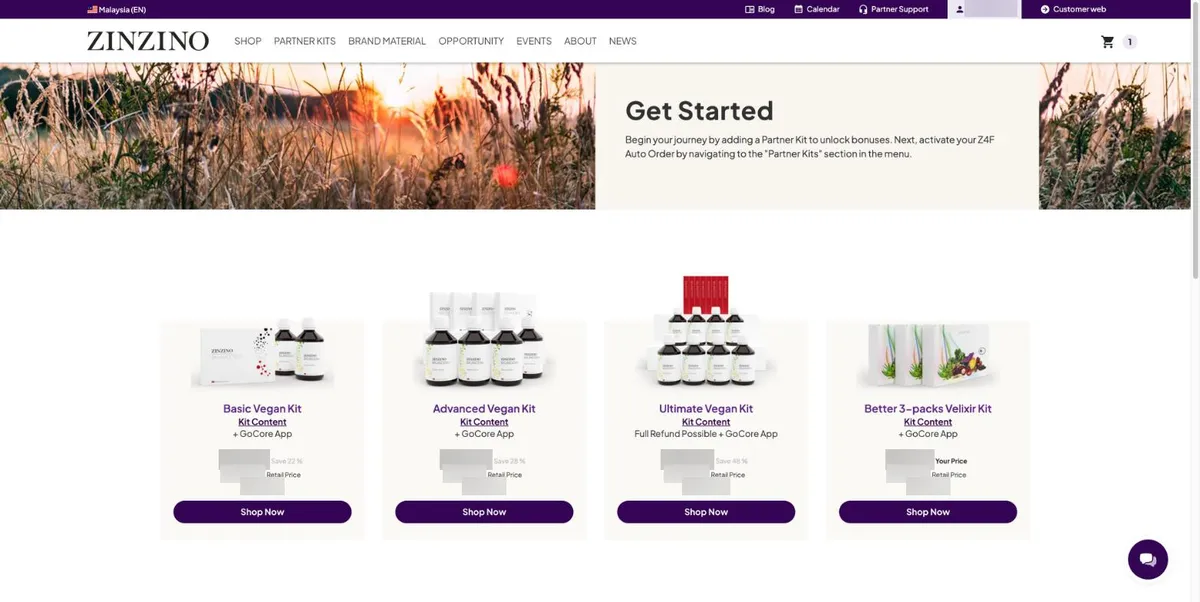
Partner Kits on the Get Started page
Get Started: choose the Partner Kit together. Kit Content shows what is inside. Press Shop Now.
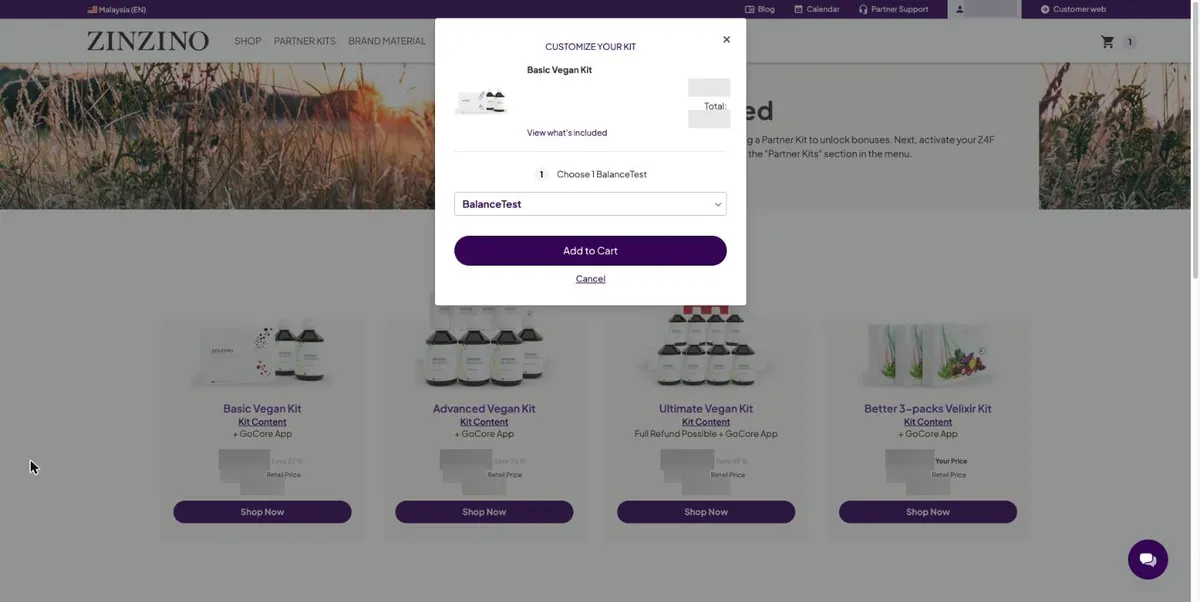
Customize the partner kit
Customize the kit, here the BalanceTest that comes with it, then Add to Cart and Go to checkout.
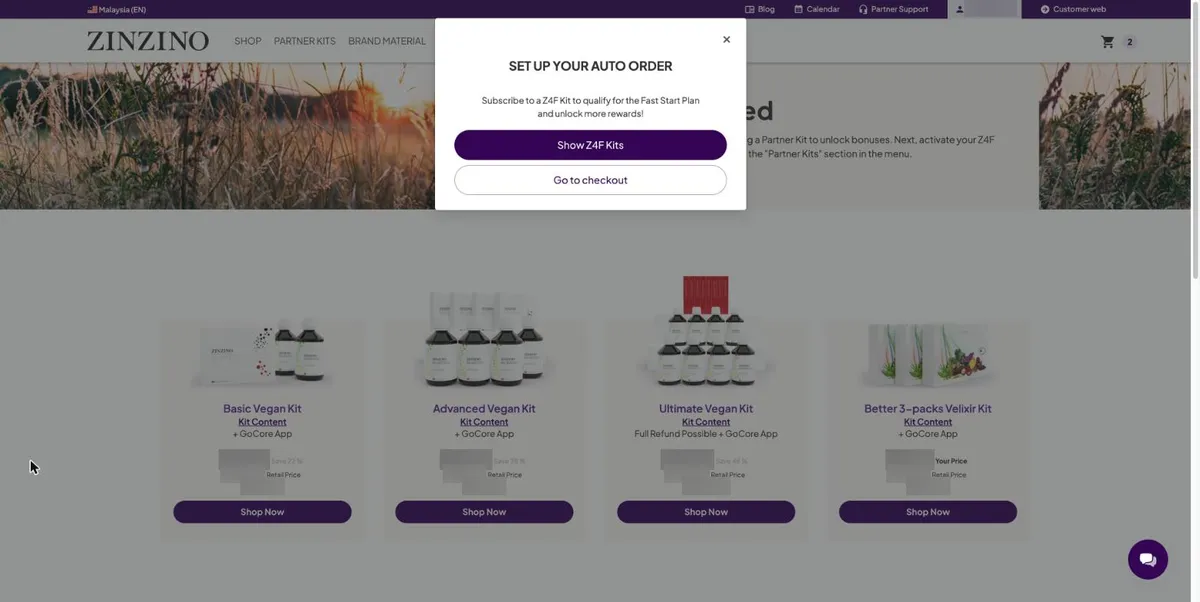
Set up your Auto Order prompt
Set up your Auto Order: choose Show Z4F Kits, so your new partner starts their Z4F AutoOrder in the same order.
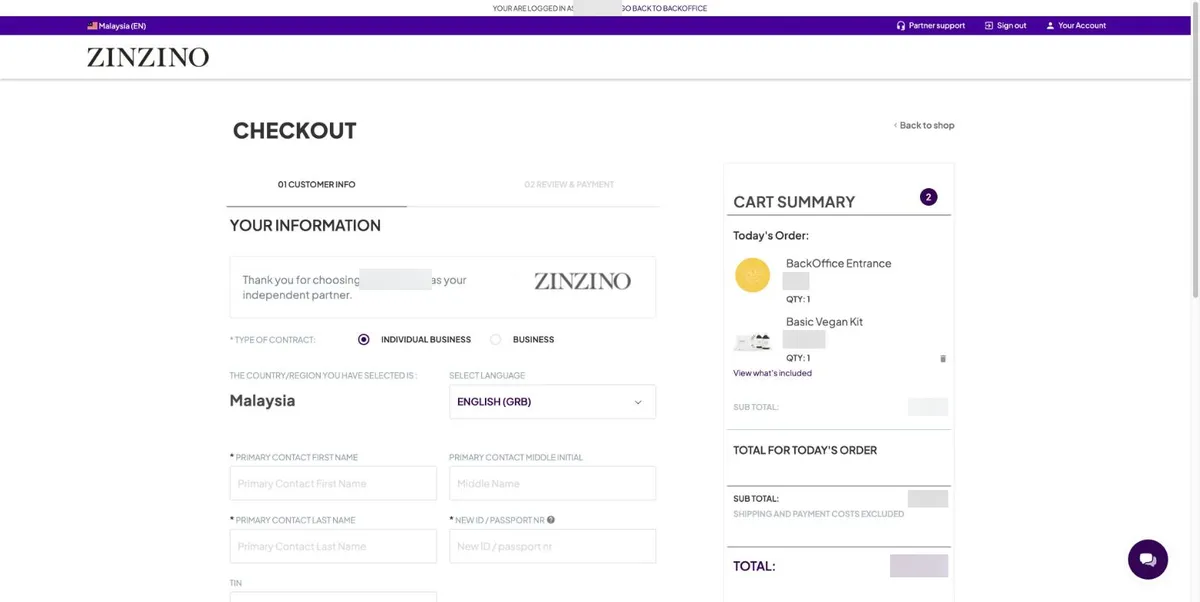
Enrolment checkout with the cart summary
The checkout says you are logged in, but the form is your new partner’s. BackOffice Entrance in the cart is their back-office account. It is meant to be there.
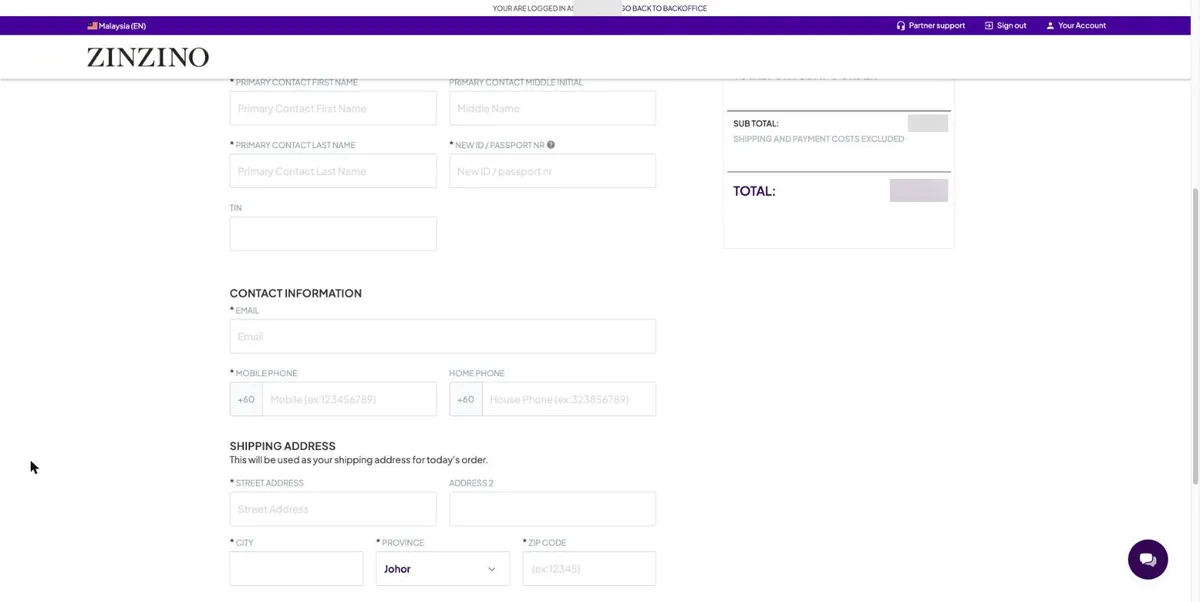
The new partner’s details form
Your new partner types their own name, IC or passport number, email, mobile and address. Then Continue to review and payment.
You’re done when…
Your new partner has paid, and gets their own welcome email. They start this path at step 1.
For sponsors
Book the call with the IC in hand. The identity number is the step new partners least expect.
Next step · Where everything else lives