Step 2 of 6
Complete your profile and press I’m done
Until you press I’m done, Orders, AutoOrders and zRewards keep sending you back to this page.
Watch out
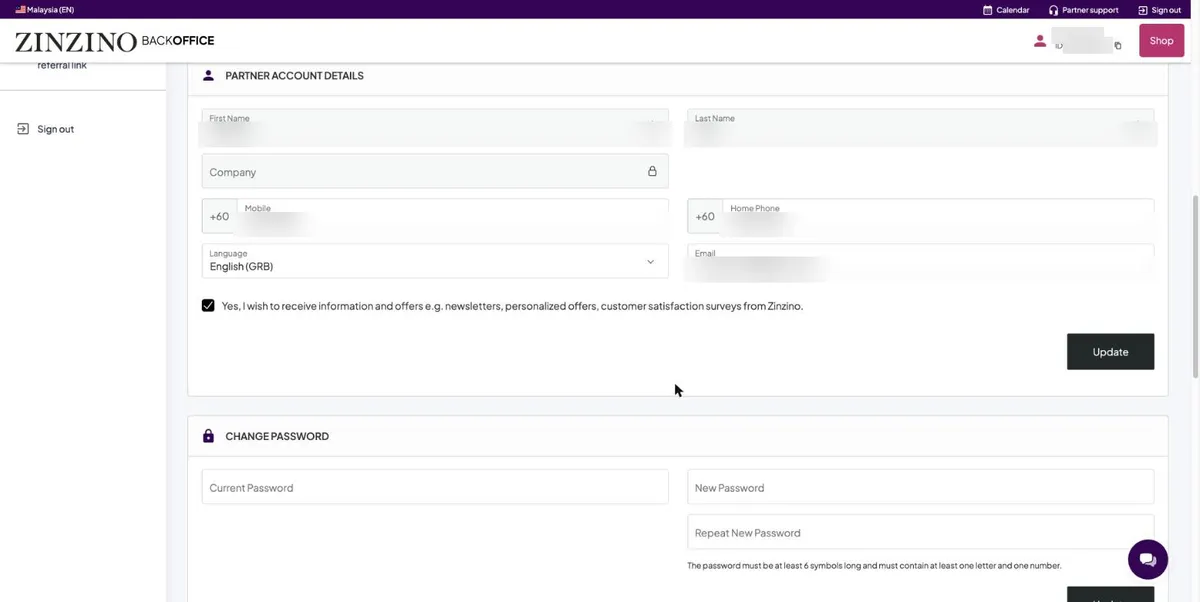
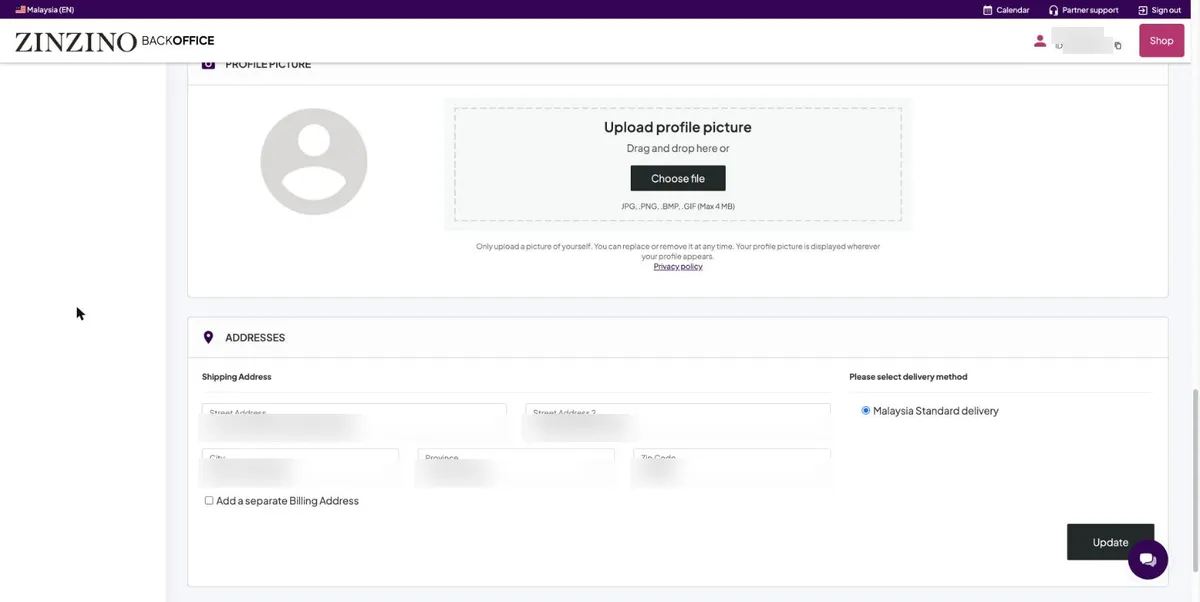
Each card has its own Update button. Changing a field and moving on without pressing it loses the change.
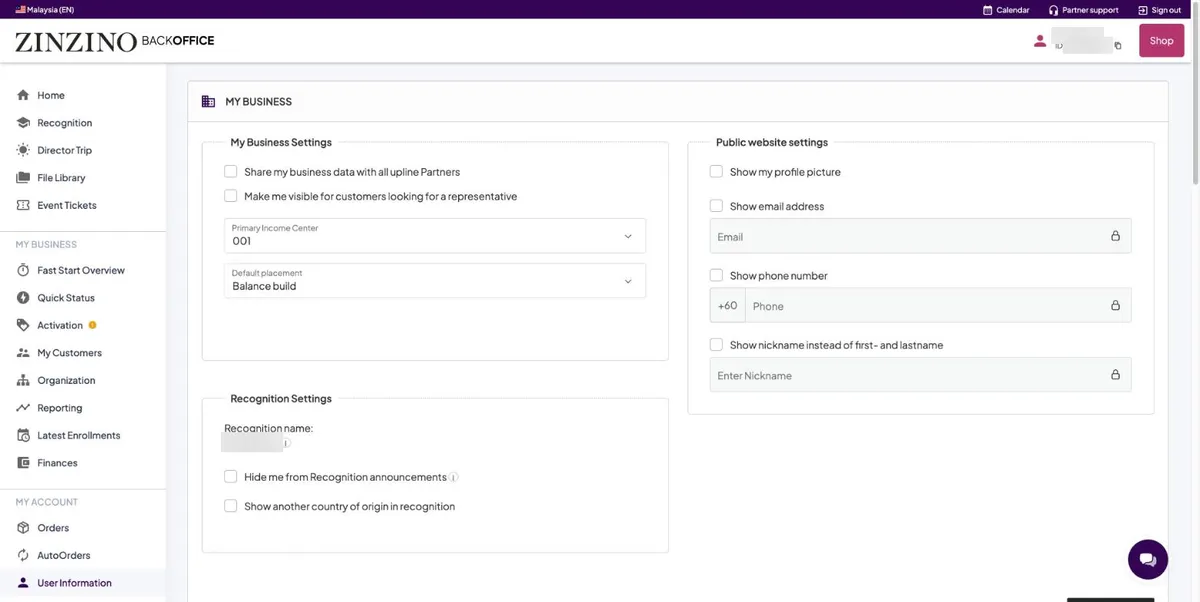
User Information opens with five cards. Check each one, press its own Update, then press I’m done at the top.
You’re done when…
Orders and AutoOrders in the left menu open their own pages instead of bringing you back here.
For sponsors
Let them press I’m done themselves. It is their account, and it is the first thing they finish.