Your Back Office, Step by Step
Step 3 of 6

Set up your Z4F AutoOrder

The one thing that matters most this week. Your Fast Start bonuses and zRewards both need an active Z4F AutoOrder.

  • Your payment card, or Google Pay
Watch out
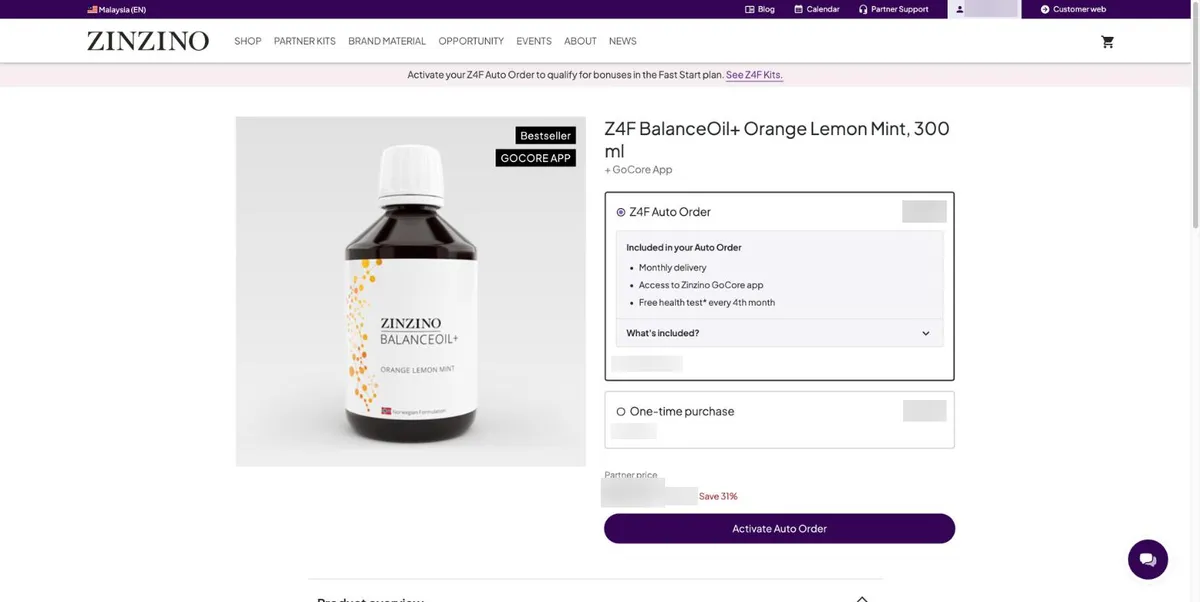
Z4F Auto Order and One-time purchase show the same price. One-time purchase does not start an AutoOrder and does not count for Z4F.
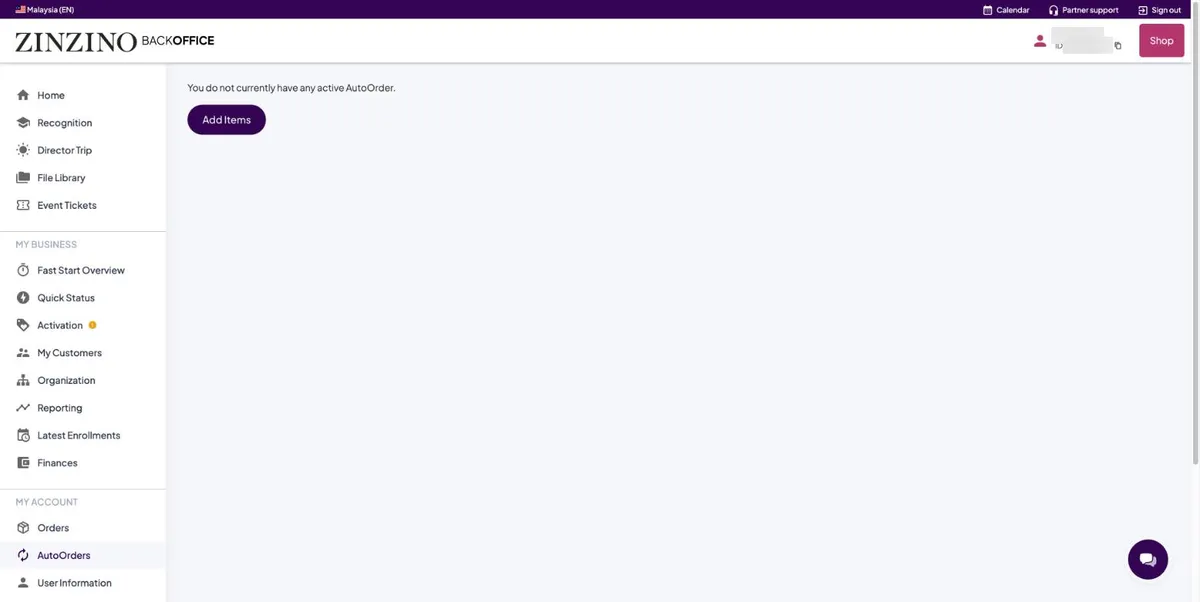
AutoOrders page with no AutoOrder yet
Left menu, AutoOrders. You have none yet. Press Add Items.
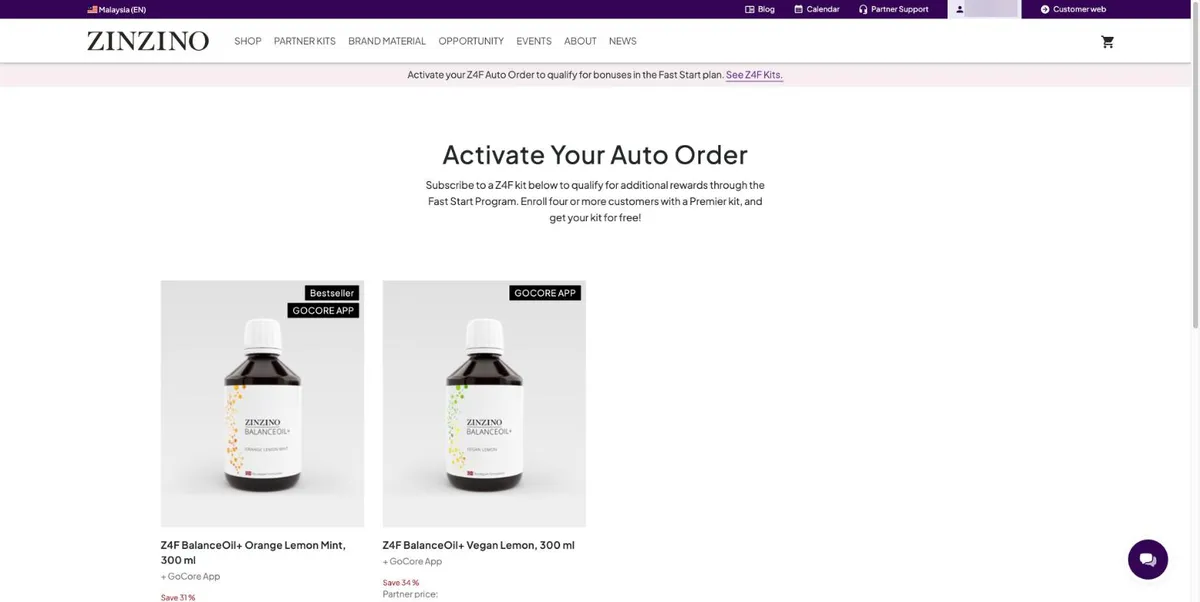
Activate Your Auto Order page with two Z4F kits
Activate Your Auto Order shows the two Malaysian Z4F kits. Pick the flavour you want. The pink banner’s See Z4F Kits link opens this same page.
Kit page with Z4F Auto Order and One-time purchase options
Keep Z4F Auto Order selected. Then press Activate Auto Order.
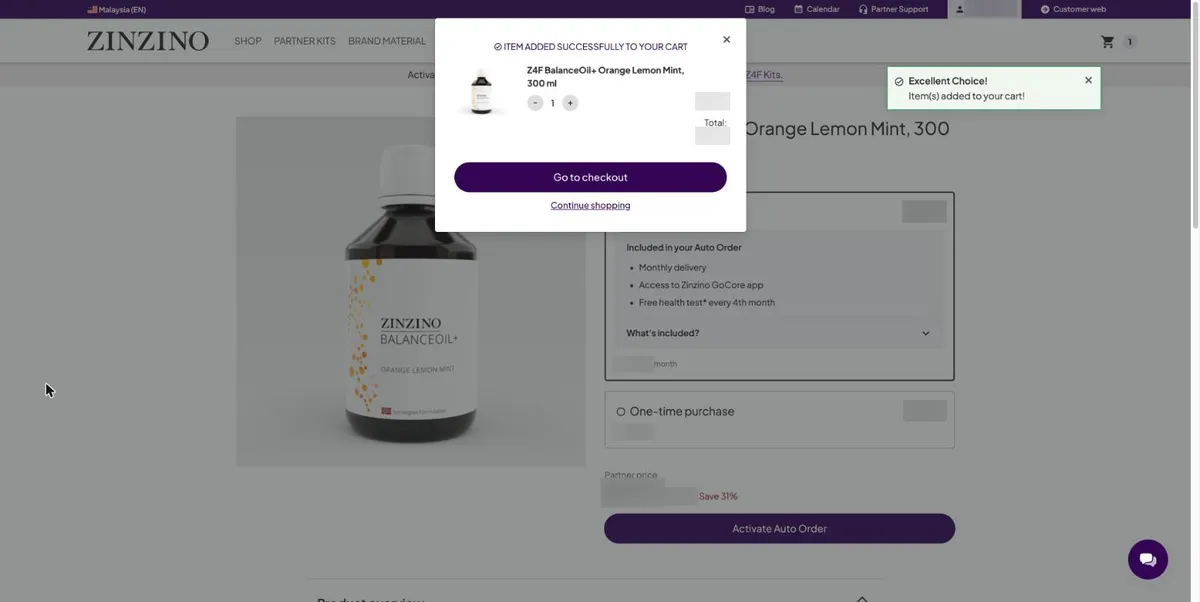
Item added to cart
Added. Press Go to checkout.
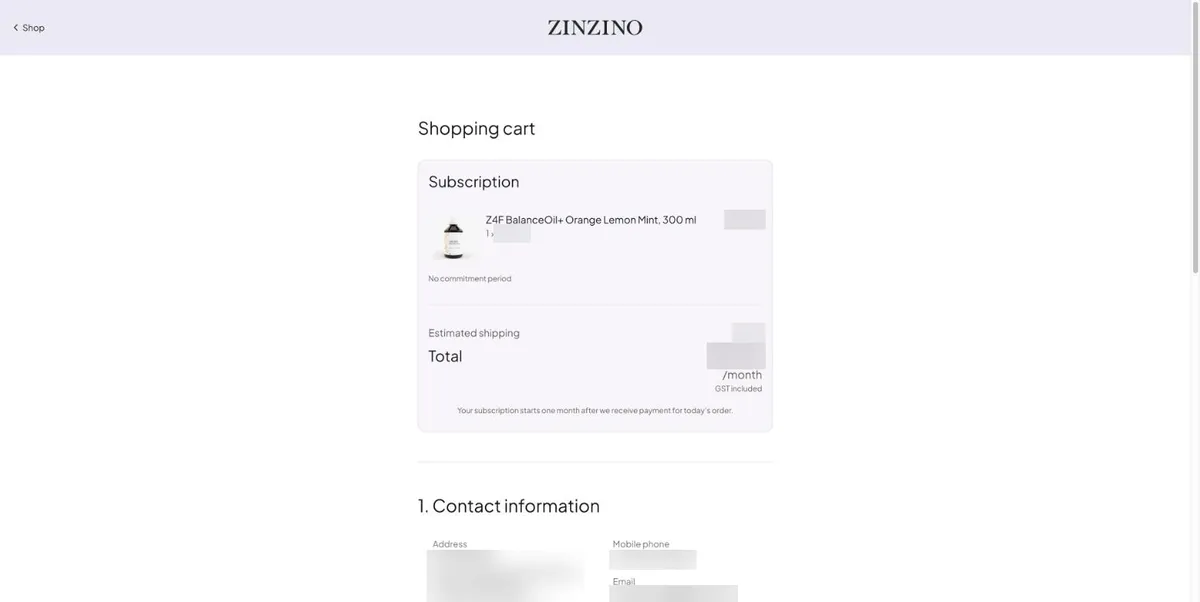
Checkout with the kit under Subscription
The kit sits under Subscription. It repeats from one month after today’s order is paid.
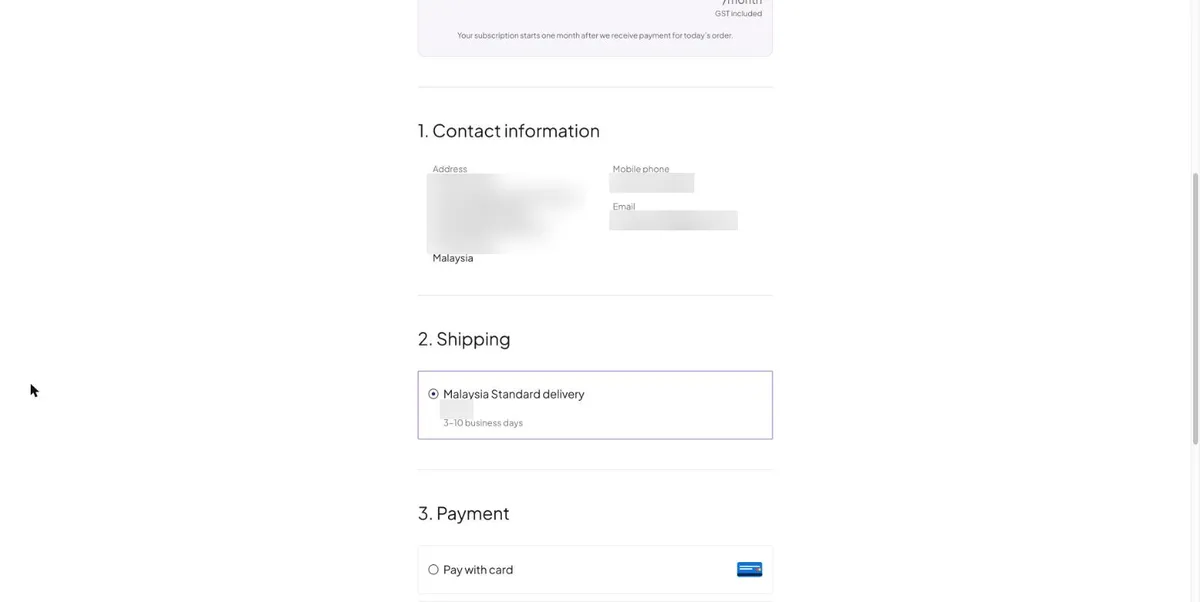
Contact information and shipping
Contact information comes from your profile. Shipping is Malaysia Standard delivery, 3 to 10 business days.
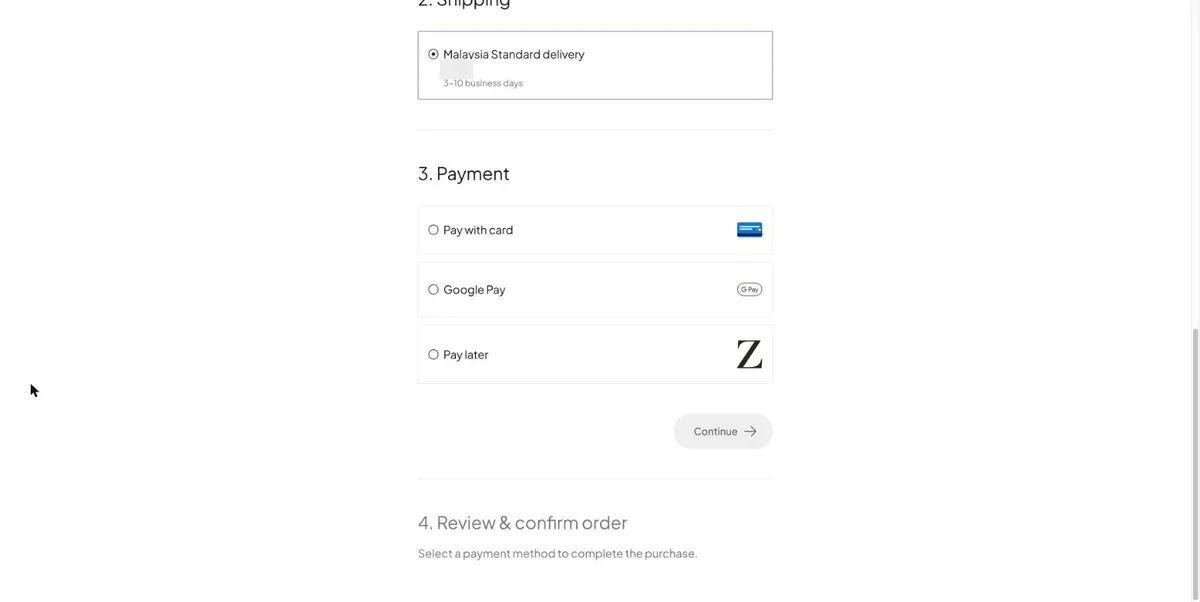
Payment options
Choose card, Google Pay or Pay later, press Continue, then review and confirm. Confirming is what creates your AutoOrder.
You’re done when…
AutoOrders shows your kit, and on Fast Start Overview the dash next to Z4F kit in Active AutoOrder becomes a tick.
For sponsors
This is the step they must do with their own hand and their own card. Stay on the call until they see the tick on Fast Start.
Next step · Take and register your BalanceTest