Your Back Office, Step by Step
Step 5 of 6

Register your first customer

When someone wants the product, you place their first order with them, in their name, in guest mode.

  • Your customer, on the call or beside you
  • Their name, address, phone and email
Watch out
Nothing on screen tells you that you are still in guest mode. Exit it every time, or your own next order goes through the wrong cart.
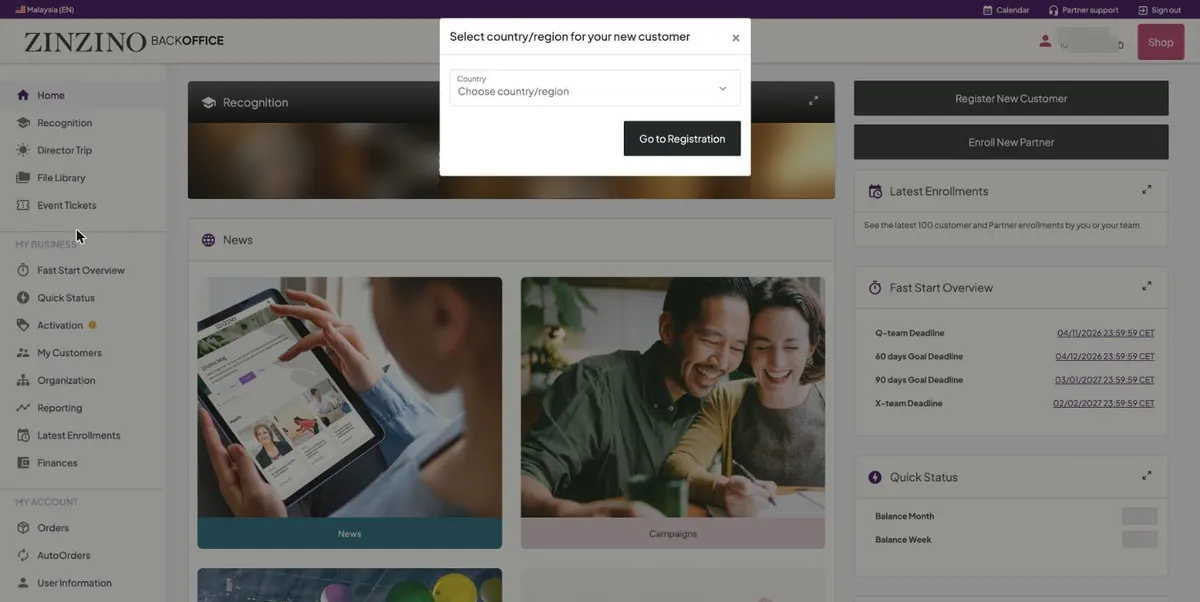
Country picker for a new customer
Home, Register New Customer. Choose Malaysia, then Go to Registration.
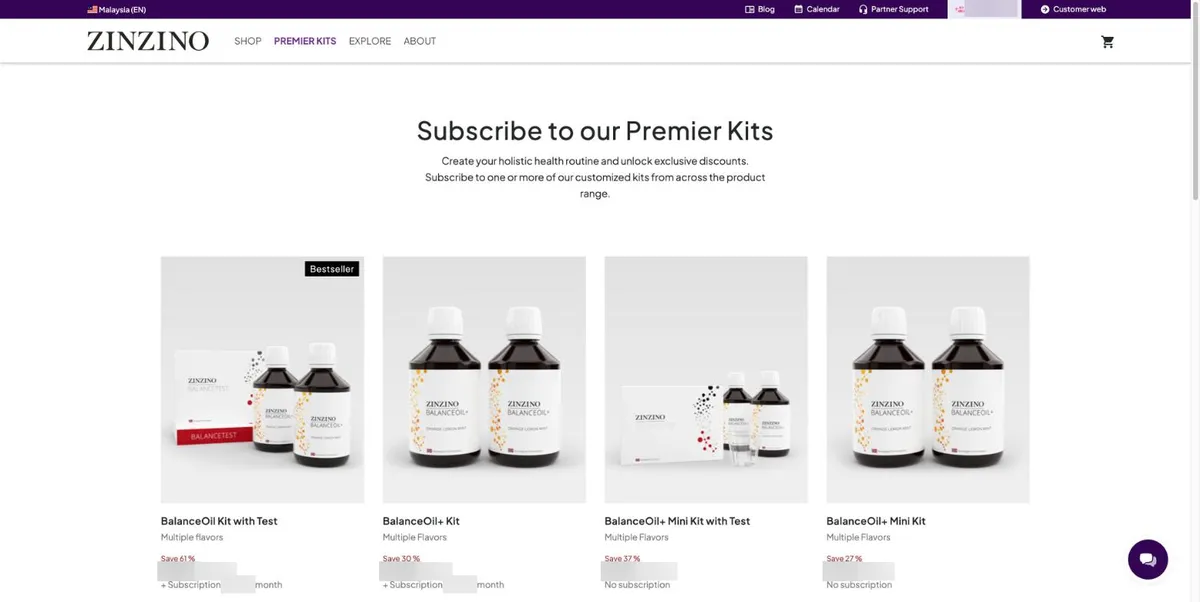
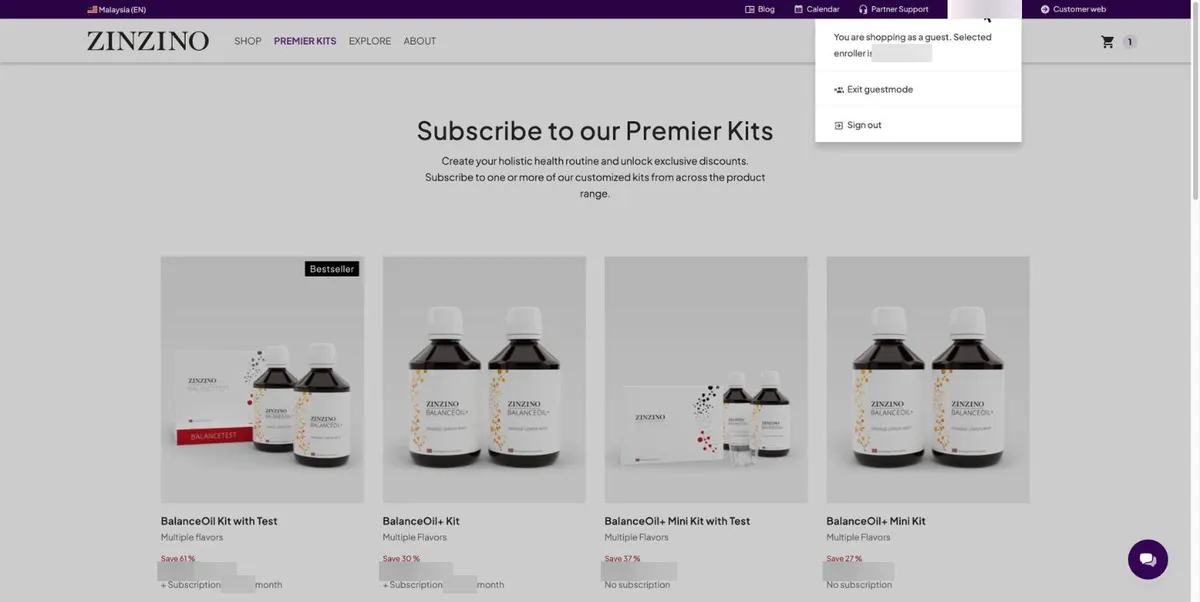
Premier Kits shop in guest mode
You are now shopping as a guest, in the Premier Kits shop. Kits marked + Subscription count for your Fast Start. Mini kits have no subscription.
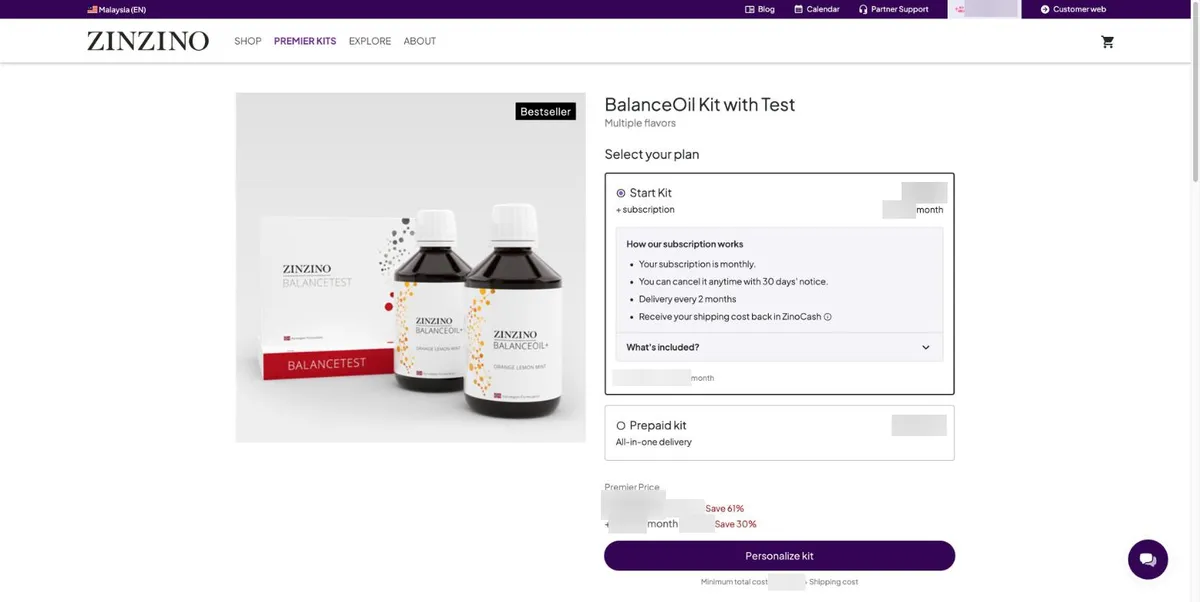
Choosing the plan for a kit
Choose the plan with your customer: Start Kit with a subscription they can cancel with 30 days’ notice, or Prepaid kit. Then Personalize kit.
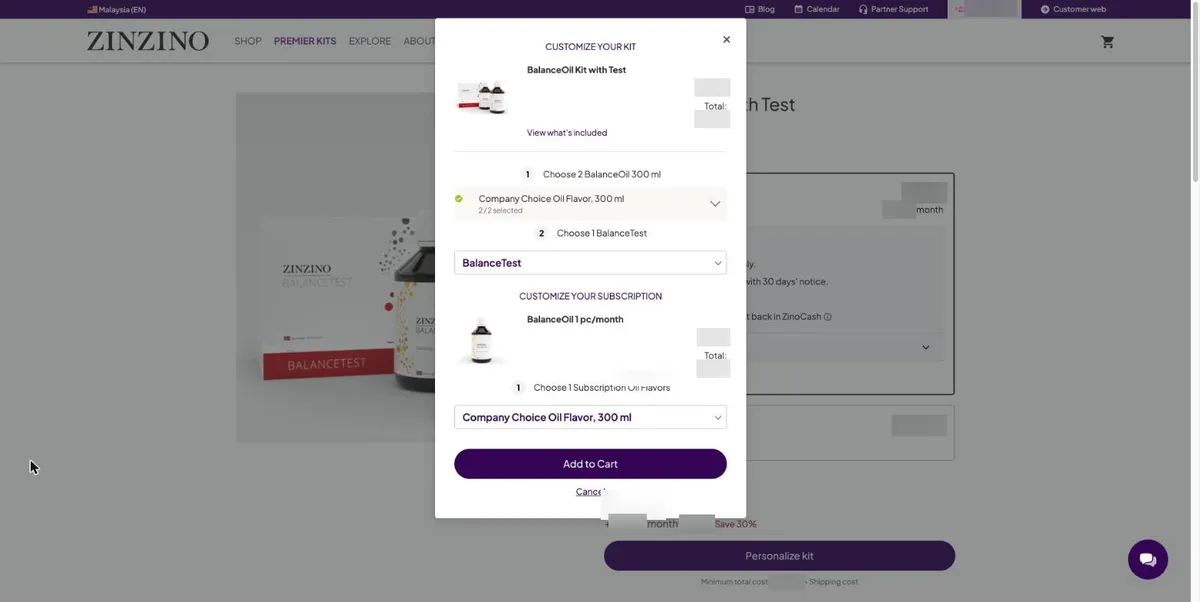
Customize your kit
Company Choice flavour is pre-selected. Change it if your customer has a favourite, then Add to Cart.
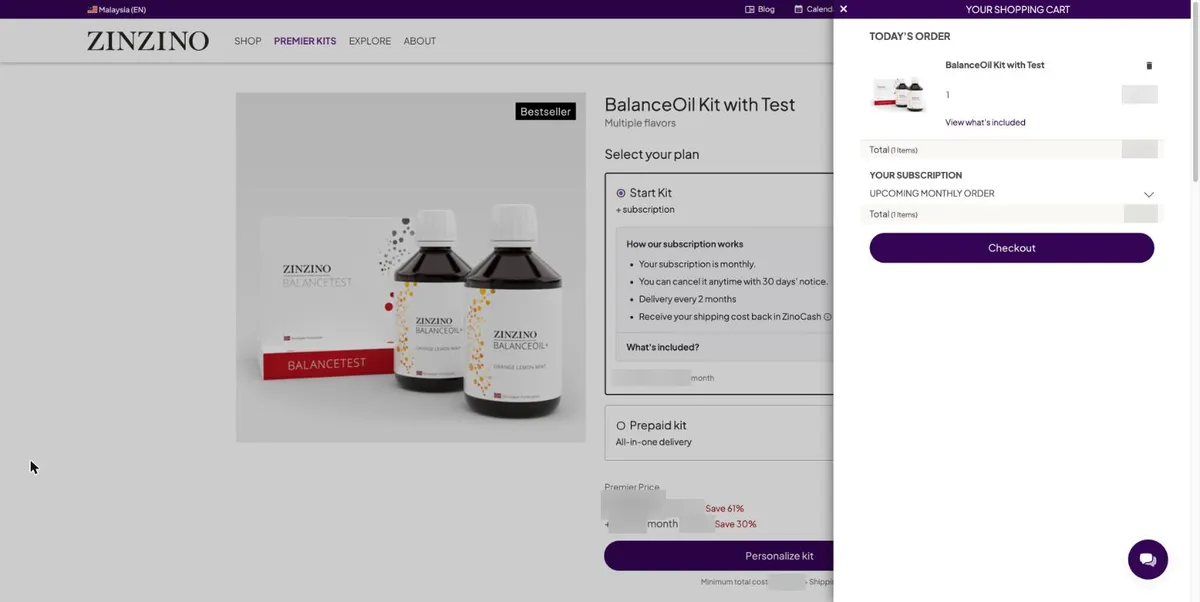
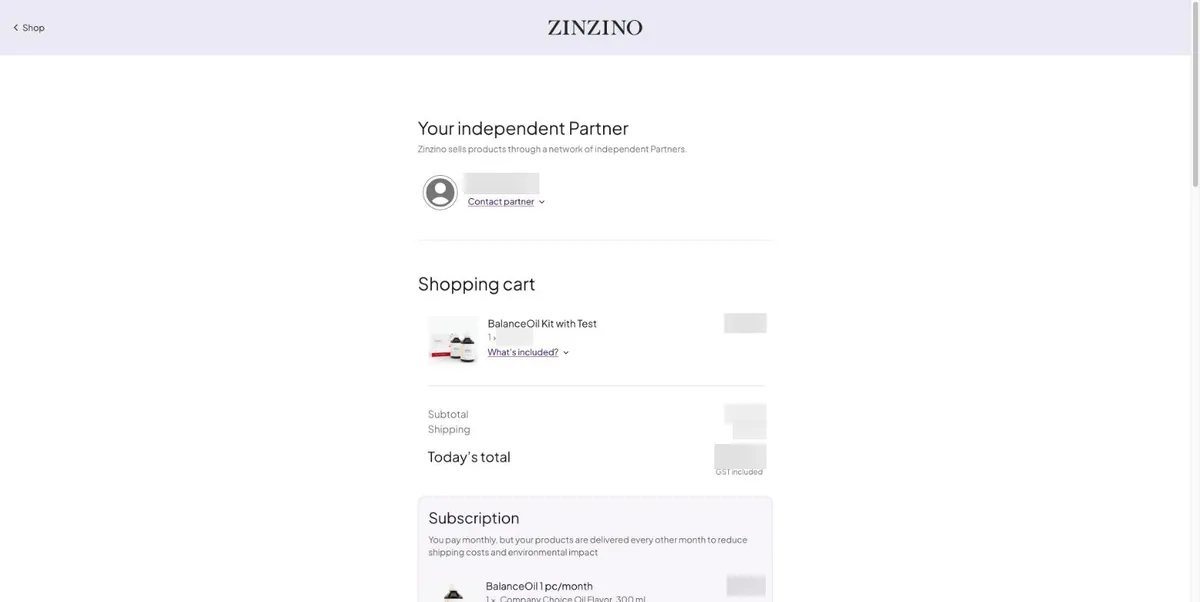
Cart showing today’s order and the subscription
The cart shows today’s order and the monthly subscription separately. Press Checkout.
Checkout showing Your independent Partner
Checkout opens with Your independent Partner. That is you, and your customer will see your name here.
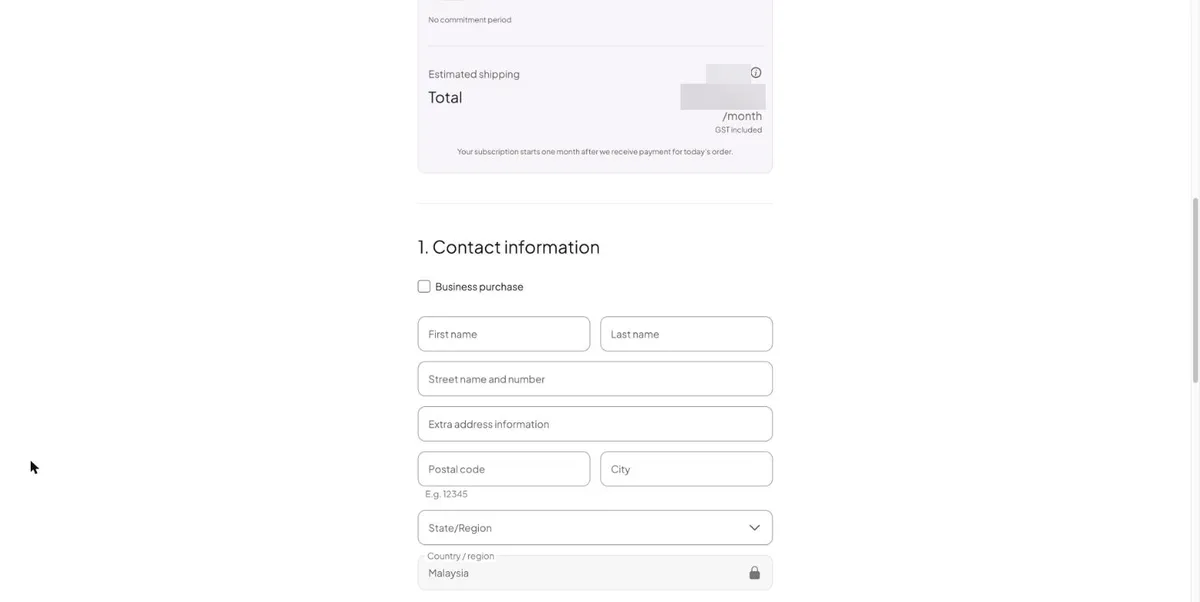
The customer’s contact information form
Contact information is your customer’s form. Hand over here: they type their own details and pay with their own card.
The name menu with Exit guestmode
When you are finished: click your name at the top, then Exit guestmode.
You’re done when…
Your customer has paid, and the top bar shows your own name again without the guest icon.
For sponsors
Walk the first one with them, live. After that, they can do it on their own with this page open.
Next step · Enroll a new partner